.png)
Auto Sync orders
Here’s a quick overview of how each sync option behaves so you can choose the one that best fits your workflow
| Sync option | When it posts to Xero | Notes |
|---|---|---|
| Exclude unpaid orders (When order is created) | When the order is marked paid or partially paid in Shopify | Unpaid orders aren't synced until they're paid. |
| Include unpaid orders (When order is created) | As soon as the order is created in Shopify | Both paid and unpaid orders sync. An unpaid order posts as an invoice in Awaiting Payment; the payment is recorded once the order is paid in Shopify. |
| On order fulfilled | When the order is marked fulfilled in Shopify | Adds fulfilment as an extra trigger. See Auto Sync orders on Order Fulfilled for details. |
| Only sync partially or fully fulfilled orders | Only once the order is partially or fully fulfilled in Shopify | Requires On order fulfilled to be enabled. When on, any order that isn't partially or fully fulfilled is skipped — this overrides the create / paid / updated triggers. |
| On order updated | When the order is updated in Shopify | Adds update as an extra trigger. See Auto Sync orders on Order Updated for details. |
Auto sync orders
Use the default Auto sync orders to control when the app creates invoices in Xero from your Shopify orders.
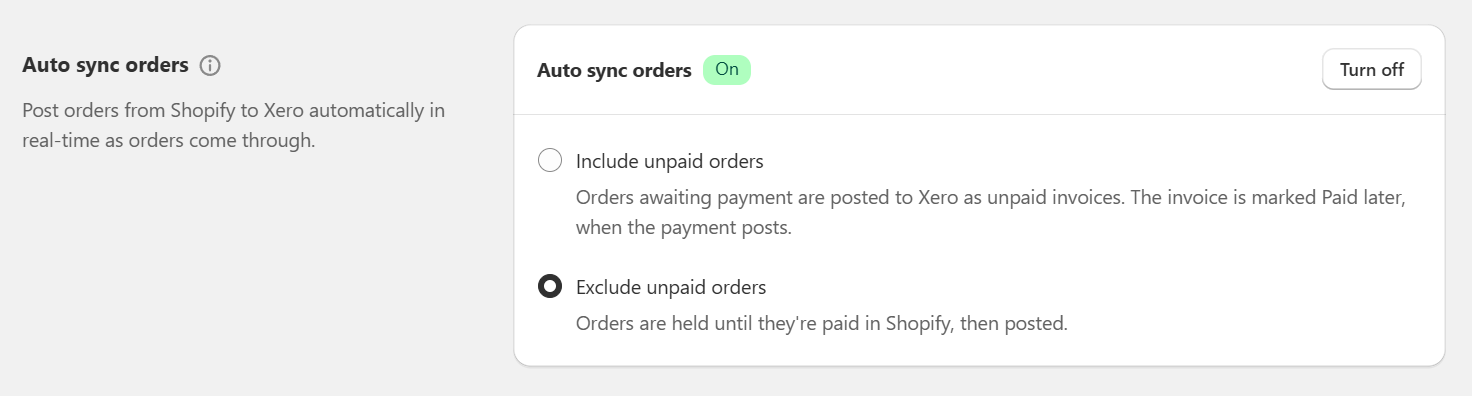
Exclude unpaid orders
Only paid orders are sent to Xero. Unpaid orders are skipped until they're paid in Shopify.
Order created → no sync
Order marked Paid → app posts the invoice to Xero
Include unpaid orders
Both paid and unpaid orders are sent to Xero as soon as they're created. Use this if you want every order to appear in Xero, even before it's paid.
Order created → app posts the invoice to Xero
Still need help?
If your orders are not syncing when you expect, or updates are not appearing in Xero, contact us at help@hyvelabs.co and include a few example Shopify order numbers. This helps us to identify how the sync settings are applying to those orders.
The app can also support custom sync triggers to only include certain orders based on order tags or other properties, such as payment gateway or channel.