.png)
Sell out-of-stock items on backorder
Setting name: Sell out-of-stock items on backorder
Where to find it: Dashboard - Products
By default, if an order includes an item that has no stock left in Xero, Xero refuses the invoice. The order shows the No Xero Stock badge with the message "Order not posted to Xero: one or more items not available to sell", and it stays unposted until you add stock and re-sync it. With this setting on, the invoice posts anyway. Xero records the missing quantity as a backorder, and the payment is applied as usual.
How it Works
Xero only checks stock for items you track inventory on. When an approved invoice needs more of a tracked item than Xero has on hand, Xero accepts the invoice and records the shortfall as a backorder instead of rejecting it. For example, if Xero has 2 of an item and the order is for 5, the invoice posts for all 5 and the 3 Xero does not have are recorded as a backorder.
This works for summarised invoices too. One summarised invoice can carry backorders for several orders, and Xero adds up every line for the same item before it checks stock. For example, if two orders in the same summary each need 2 of an item and Xero has 3, the summary posts and 1 is recorded as a backorder.
When the stock arrives, add it in Xero with a bill or an inventory adjustment. Xero explains how backorders work on its side in About backorders for tracked inventory.
Setup Requirements
Match product SKUs must be on. Without it the app does not send Xero item codes, so Xero has no stock to check and no backorder is recorded. Until it is on, the backorder switch is greyed out with a note explaining why. See Match product SKUs to Xero items.
How to turn it on
- Go to Dashboard - Products on the Post to Xero app.
- In the Matching section, find Sell out-of-stock items on backorder, just under Match product SKUs.
- Click Turn on. The badge changes to On.
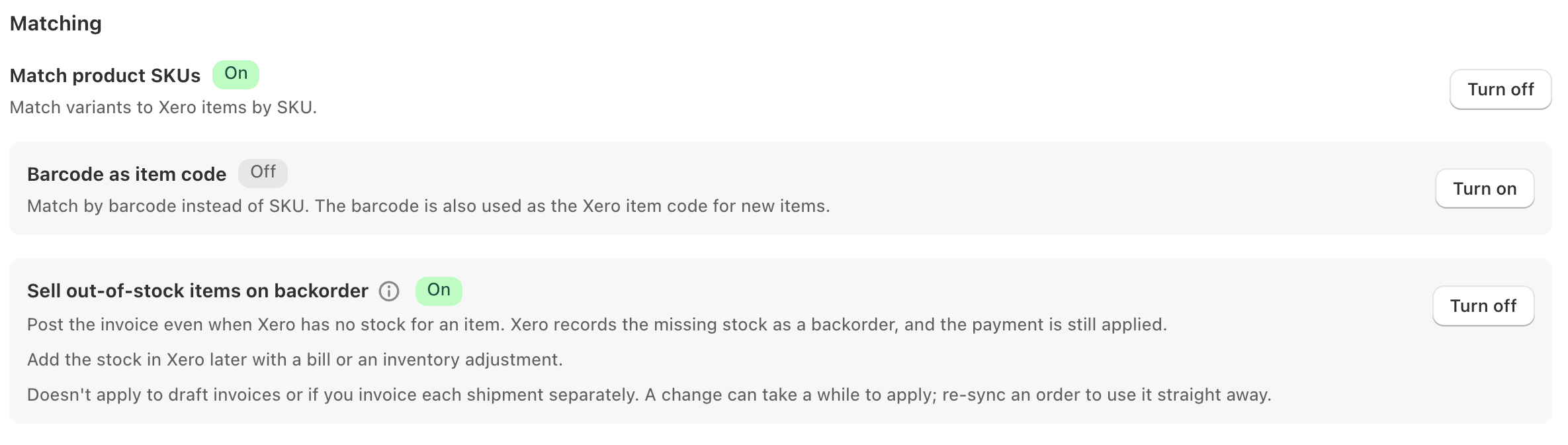
To stop, click Turn off. Out-of-stock orders then show No Xero Stock again.
What it does not change
- Draft invoices. It only applies to invoices that post as Approved. An invoice that posts as a Draft, for example while payment is pending, is not affected.
- Invoices for each shipment. If you invoice each shipment separately, this setting does not apply to those invoices.
- Orders that already failed. Orders showing No Xero Stock from before you turned it on are not re-posted for you. Open them from the Out of Stock filter on Dashboard - Orders and post them again.
A change can take a while to reach new orders. If an order still shows No Xero Stock just after you turn this on, post it again from Dashboard - Orders.
If the setting shows Set by support, our team set it up for your store and the switch is locked. Email us to change it.
Need a hand? Email us at help@hyvelabs.co with your shop URL, the order number and the message shown on the order.